Star your most important posts, and see what a link changes
Every link card has two extras: a star, to mark a post as one that earns you money so links to it come first, and a what-if view inside “Why this link?” that shows how the link would change that post’s place in your site.
Steps
Find a link to the post on Links to add
The star sits on link cards in Links to add, and stars the post the link points to. Use a filter, or ⌘K / Ctrl K to jump, to find a link to the post you care about.
Press Star this post
Press Star this post at the foot of the card. Use it for posts that earn you money or matter most: a product guide, a booking page, a pillar post. The card says Starred. Links to it rank first from the next analysis, with Undo. Press Starred again to remove the star.
Open Why this link? to see what the link changes
Press Why this link? on any card. Under What this link changes, two measures compare now with the link in place, counting the links you have already approved:
- Clicks from your home page: how deep the target post is. Fewer is easier to find — see why click depth matters.
- Share of link value: how much of your site’s internal linking flows to it.
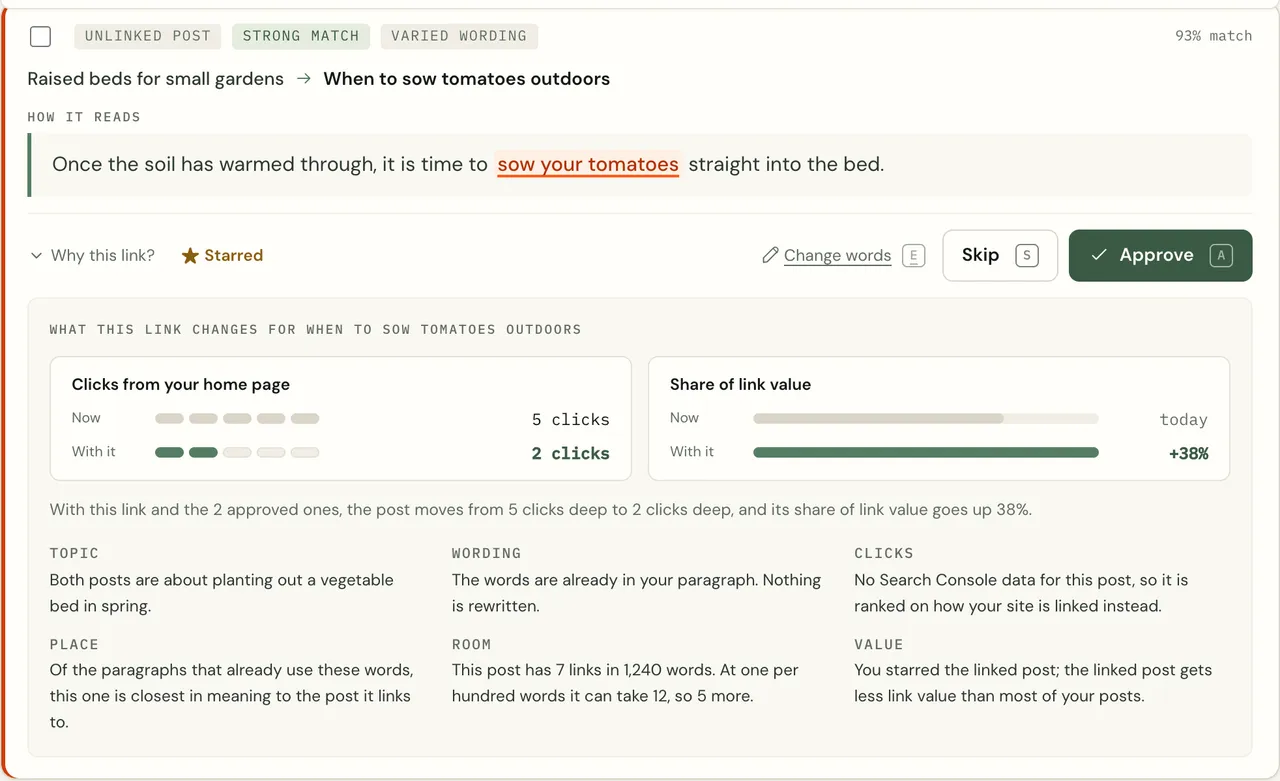
Why this link? shows what the link changes for the post it points to, and why it was suggested. Below, short notes explain the suggestion: the topic both posts share, why these words, where in the post it sits, and whether the post has room for another link.
What you should see
Starred posts show Starred on their cards, and after the next analysis links to them rank first in Links to add. Approving them from the weekly email works the same as anywhere else.
If it doesn’t work
- “Could not work this out just now”
Press Try again. The figures are worked out the first time you open the panel.
- Starring changed nothing yet
Stars take effect from the next analysis, which runs with each scan. Links already listed keep their order until then.