Approve, skip, undo and edit links in Links to add
Links to add is the list of links worth adding between your own posts, each shown in the sentence it would sit in. Approving or skipping only records your decision; nothing changes on your site until you write the approved links.
Steps
Open Links to add and pick a filter
Open Links to add in the sidebar. The filters along the top narrow the list: Strong match (the surest links), Unlinked posts (links to posts nothing links to yet), Buried posts (posts many clicks from your home page), New posts and Skipped. Sixty links load at a time; Show more loads the next.
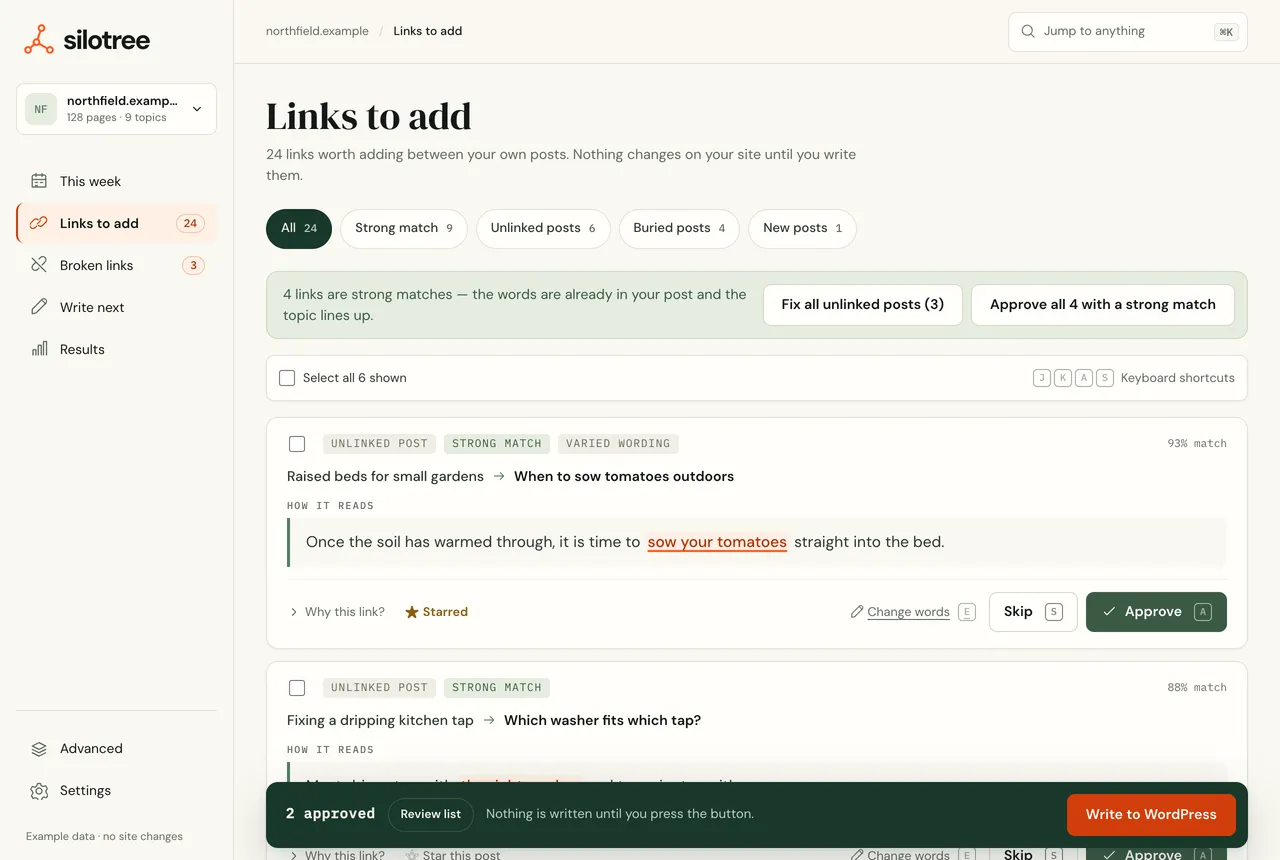
Links to add. Each card shows the post the link goes in, the post it points to, and how the sentence reads. Approve or skip each link
Read the sentence under How it reads, then press Approve or Skip. Approving only records your decision; nothing changes on your site until you write the approved links (see write and undo batches). Tags on the card tell you why it is there; Same link repeated or Too many links are worth a closer look before approving.
Not sure? Open Why this link? to see what the two posts share and what the link would change — more in starred pages and the what-if view.
Undo a decision you got wrong
After each decision a message appears at the foot of the screen — Approved · Undo — for ten seconds, and stays while your pointer or keyboard focus is on it. Press Undo, or U, and the link goes back to undecided. Later, the card itself shows Approved or Skipped with an Undo button; in the Skipped filter, press Restore. Once a link has been written to WordPress, undo the batch instead.
Change the words a link sits on
Press Change words (or E). The sentence becomes clickable: click a word, then Shift-click or drag to take in more, up to ten words. With the keyboard, the arrow keys move, Shift + arrow widens the pick, and Enter picks. Or use offers other phrases from the same sentence. Press Use these words to save, or Cancel.
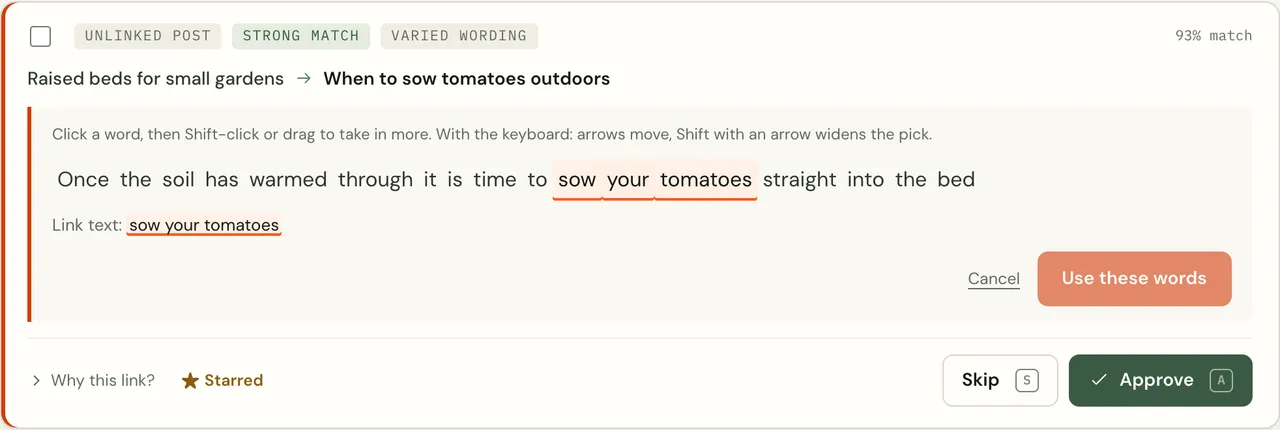
Change words. The link can only sit on words that are already in the sentence. Approve or skip in bulk
Approve all 4 with a strong match approves only the surest links. Fix all unlinked posts opens a review of every link to a post nothing links to, ready to write in one go. To pick your own set, tick cards (or press X), or Select all 6 shown, then press Approve, Skip or Clear in the bar that appears.
Keyboard shortcuts
On a computer with a mouse or trackpad, press ? on Links to add to show them on screen. They do nothing while you are typing in a field.
| Key | What it does |
|---|---|
| J | Next link |
| K | Previous link |
| A | Approve, and move to the next open link |
| S | Skip |
| E | Change the words |
| X | Select for a bulk action |
| U | Undo the last decision |
| ? | Show or hide the shortcuts |
| Esc | Close the shortcuts, or clear the selection |
| ⌘ / Ctrl + K | Jump to any screen or post |
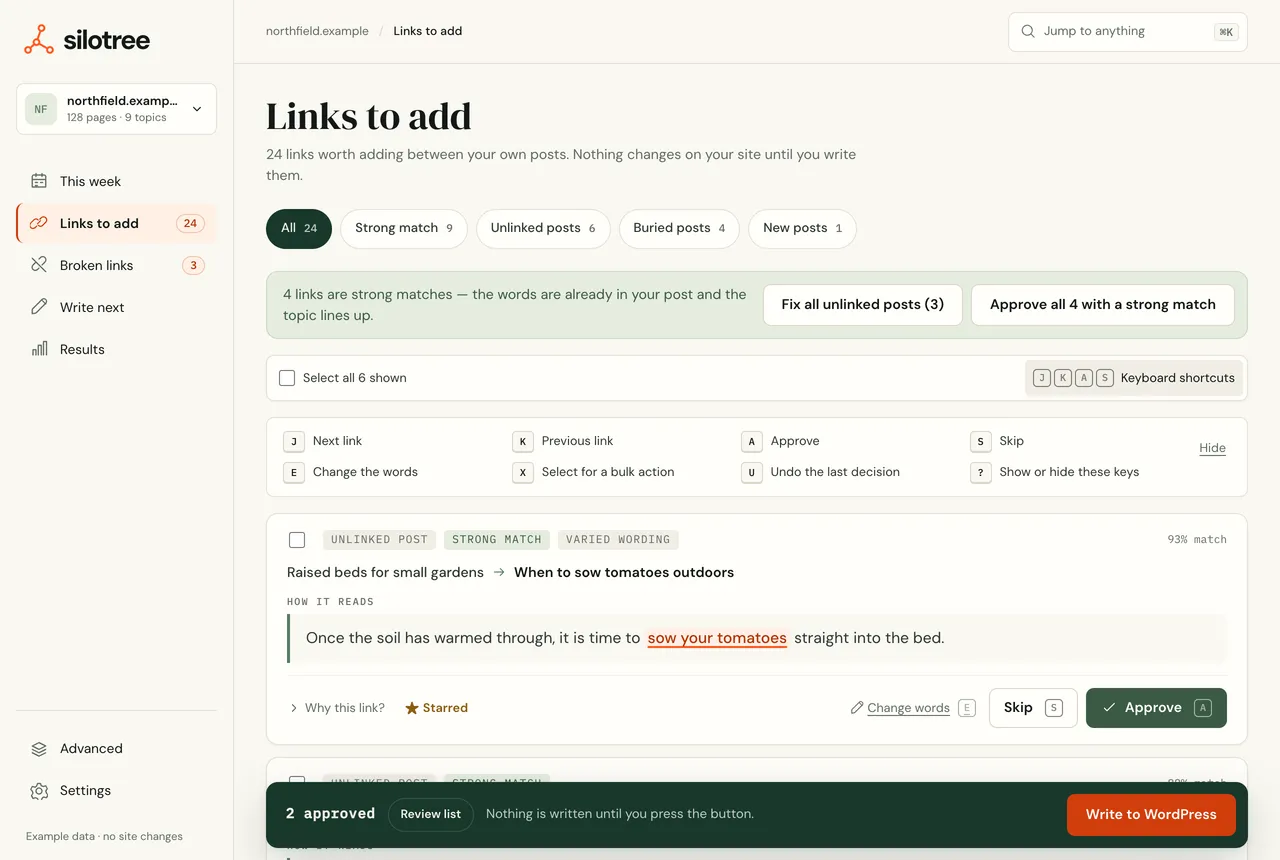
What you should see
The bar at the foot of the screen counts your approved links — 2 approved — and says nothing is written until you press the button. Skipped links move to the Skipped filter.
If it doesn’t work
- “That cannot be undone any more”
The link has been written, or the same link is waiting again. Undo the batch from Results → Changes & undo.
- “Pick up to 10 words”
A link reads best as a short phrase. Pick fewer words.
- The list is empty
Every suggestion has been decided, or your site is new to Silotree and the first analysis is still running. New suggestions arrive after each scan and in the weekly email.
- The shortcuts don’t work
Click an empty part of the page so no field has focus. Shortcuts are off while a review sheet is open, and on touch screens.
Choosing good link words is a skill of its own; the anchor text guide has examples.
Questions
What does “Strong match” mean?
The two posts are closely related by meaning and the sentence reads well with the link in it. Approve all with a strong match approves only those.
Where do skipped links go?
Under the Skipped filter. Press Restore on one to put it back in the list.
Does approving cost anything on the free plan?
No. Approving is always free. The free plan writes your first 10 approved links into WordPress; after that, approved links are saved and written when you move to a paid plan.