Install the plugin, or update it to the latest version
The plugin is not in the WordPress.org directory yet, so it is installed and updated from a zip file you download from your Silotree account. It works on its own straight away; connecting it to your account comes after.
- WordPress 5.9 or later, and PHP 7.4 or later. Version 0.3.0 is tested up to WordPress 7.1.
- An administrator login, because only administrators can install plugins.
- A Silotree account to download from. The plugin itself works without one; see sign up if you have none.
Steps
Download silotree.zip from your Silotree account
Before a site is connected, Silotree offers the download in two places: Download the plugin in Settings → Connections, and Download silotree.zip on the WordPress step of Getting started. The latest version is always at silotree.io/downloads/silotree.zip. Leave the file zipped: WordPress installs the zip as it is.
Upload it in WordPress and activate it
In WordPress go to Plugins → Add New → Upload Plugin, choose
silotree.zip, press Install Now, then Activate. If you prefer, unzip it and upload thesilotreefolder to/wp-content/plugins/instead.Open Silotree in the admin menu
A Silotree menu appears just above Appearance, with Broken links, Link rules and Undo under it. The first scan starts on activation and runs in the background on your own server; a notice offers Connect to Silotree, which you can do now or later.
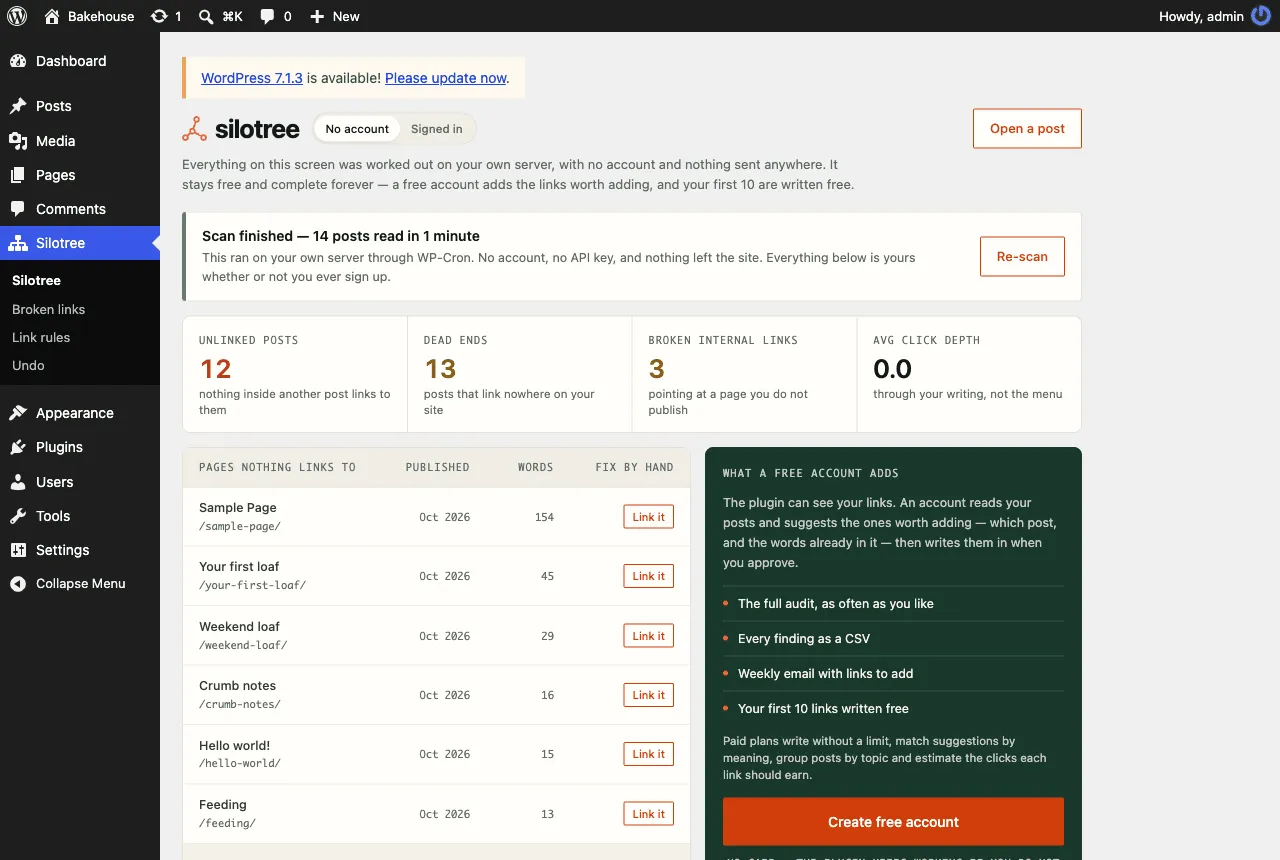
The Silotree screen in WordPress after the first scan. All of it is worked out on your server. To update, upload the newer zip and replace the current version
The plugin does not update itself until it is listed on WordPress.org. To update to the latest version (0.3.0), download silotree.zip again, upload it under Plugins → Add New → Upload Plugin, and choose Replace current with uploaded when WordPress asks. The zip always unpacks to the same
silotreefolder, so your settings, keyword rules, never-link list and undo history are kept, and the connection to Silotree stays in place.
What you should see
Plugins lists Silotree as active, with the version you uploaded. The Silotree screen shows your scan. To have links written for you, carry on with pairing the plugin.
If it doesn’t work
- “The package could not be installed” or a PHP version error
Check that you uploaded the zip itself, not an unzipped folder, and that your host runs PHP 7.4 or later. Your host’s control panel shows the PHP version.
- The upload is too large or times out
Some hosts limit upload size. Unzip the file and upload the
silotreefolder to/wp-content/plugins/with your host’s file manager or SFTP, then activate it under Plugins.- After updating, Silotree says it cannot prove it holds the key
An older plugin is still answering. Make sure the upload replaced the installed copy, then press Connect again on Settings → Silotree. More in the plugin can’t reach Silotree.
- The scan on the Silotree screen never finishes
The scan runs through WP-Cron, which only runs when someone visits the site. On a quiet site, or one with
DISABLE_WP_CRONset and no server cron, press Re-scan or visit a few pages to move it along.
Questions
Does the plugin update itself?
No. Until it is listed on WordPress.org there is no automatic update. Download the newest silotree.zip from silotree.io/downloads/silotree.zip and upload it over the installed copy. Your settings, rules and undo history are kept.
Does it slow my site down?
No. Nothing runs when a reader loads a page and there is no front-end script. The scan runs in the background through WP-Cron, in batches.
What happens if I deactivate it?
The links stay — they are ordinary links in your posts. Deactivating only stops the scheduled jobs; your settings and undo history are kept until you delete the plugin.