Add links in the Classic Editor
If your site uses the Classic Editor, the same suggestions as the block editor sidebar appear in a Silotree box in the side column of the post screen.
Steps
Open a post in the Classic Editor
Edit a post in the Classic Editor. The box appears only where the block editor is not in use; in the block editor you get the sidebar instead.
Find the Silotree box in the side column
The Silotree box sits in the side column, under Publish, Categories and Tags. Drag it higher if you like; WordPress remembers. It shows Reading your draft… while it loads, then the Density meter (from 300 words) and the Link to list.
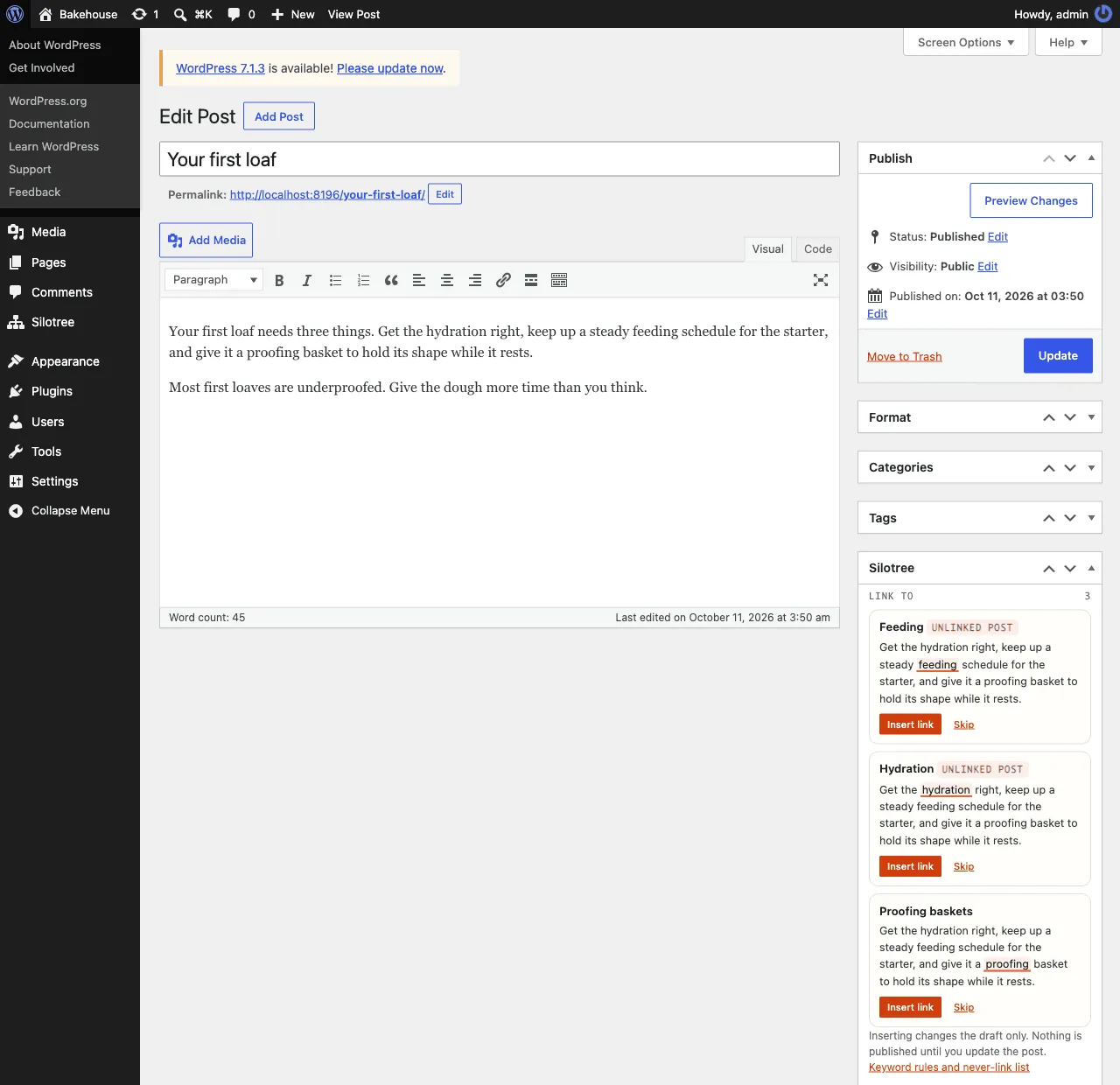
The Silotree box in the Classic Editor’s side column. Press Insert link, Skip or Undo
Insert link wraps the underlined words in your post, in either the Visual or the Text tab. Undo takes it back out; Skip hides the suggestion. Inserting changes the draft only.
Add links from older posts under Should link here
On a published post, Should link here lists older posts that mention this one. Press Add link to that post to write the link into the older post now. Published posts also get Links in and out, as saved, a short version of the links report.
Update the post
Press Update (or Publish) to save the links you inserted.
What you should see
Your post contains the new links as ordinary links. Links added to older posts are written at once and can be undone from Silotree → Undo.
If it doesn’t work
- No Silotree box
Open Screen Options at the top of the post screen and tick Silotree. The box appears on public post types only.
- An error card with Try again
The suggestions failed to load; your writing is safe. Press Try again. If it keeps failing, a security plugin may be blocking the REST API — see the plugin can’t reach Silotree.
- No prompt after publishing
The publish prompt is in the block editor only. In the Classic Editor, use Should link here in the box after publishing.