Connect WordPress: install and pair the plugin
Silotree writes the links you approve through a small WordPress plugin. Connecting takes about three minutes: download it, upload and activate it, then press Connect in WordPress.
- A WordPress site running WordPress 5.9 or later and PHP 7.4 or later.
- An administrator login to that site: only an administrator can install plugins and connect.
- Your Silotree account open in another tab, on Getting started step 2.
Steps
Press Download silotree.zip
On step 2, Connect WordPress, press Download silotree.zip. Leave the file zipped. The same download is in Settings → Connections as Download the plugin.
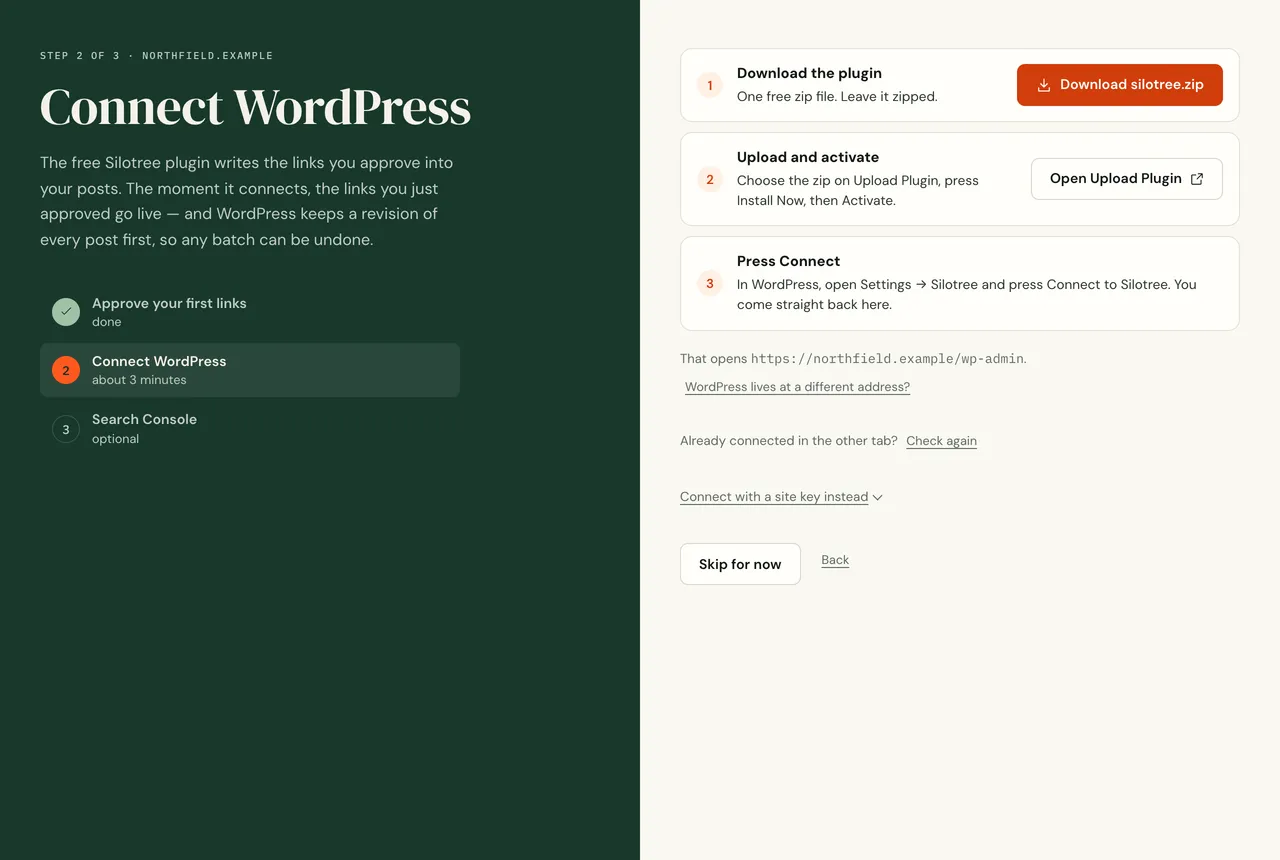
The WordPress step: download, upload and activate, then connect. Upload and activate the plugin in WordPress
Press Open Upload Plugin to open Plugins → Add New → Upload Plugin in your WordPress admin. Choose
silotree.zip, press Install Now, then Activate. A Silotree item appears in the admin menu, just above Appearance, and the plugin starts reading your posts on your own server.Open Settings → Silotree and press Connect to Silotree
In WordPress, open Settings → Silotree and press Connect to Silotree. The notice that appears after activation has the same button.
Confirm the site in Silotree
Silotree opens and asks Connect yoursite.com to Silotree?. Check you are signed in as the right account, then press Connect yoursite.com. You land back in Silotree with the site connected. There is no key or password to copy.
What you should see
You are back on Getting started, and if you approved links on step 1, they are being written now — see see your first links live. In WordPress, Settings → Silotree shows Connected.
If it doesn’t work
- The page says “Already connected in the other tab?”
If you connected in WordPress but this tab didn’t notice, press Check again.
- WordPress lives at a different address from the site you scanned
For example, the site is
yoursite.combut WordPress runs atyoursite.com/blog. Press WordPress lives at a different address? on the step and type the WordPress address.- The browser route doesn’t work for your site
Use Connect with a site key instead: copy the key from Settings → Silotree in WordPress (under Connect with a key instead), paste it with your WordPress address, and press Save and continue.
- “Silotree could not reach this site to confirm the connection”
A security plugin or your host is blocking the WordPress REST API. Allow
/wp-json/silotree/and try again; every message and its fix is in the plugin can’t reach Silotree.- Your site isn’t on WordPress
Press Skip — not WordPress. You keep the audit and can download the suggested links as a CSV to add by hand.
Updating the plugin, re-pairing and site keys are covered in install and update the plugin and pair and re-pair the plugin.
Questions
My site is not on WordPress. Can I still use Silotree?
The audit and the link suggestions work on any site, and you can download the suggested links as a CSV to add by hand. Writing links for you needs WordPress and the plugin.
Can I connect later?
Yes. Press Skip for now in onboarding. The plugin download and the same steps are in Settings → Connections whenever you are ready.