Connect Search Console
Search Console is optional, but it is what lets Silotree put the links that matter first, find posts competing for the same search, and show whether the posts you linked got more clicks. Access is read-only.
Steps
Press Connect Search Console
It is step 3 of Getting started, and always available in Settings → Connections on the Search Console card.
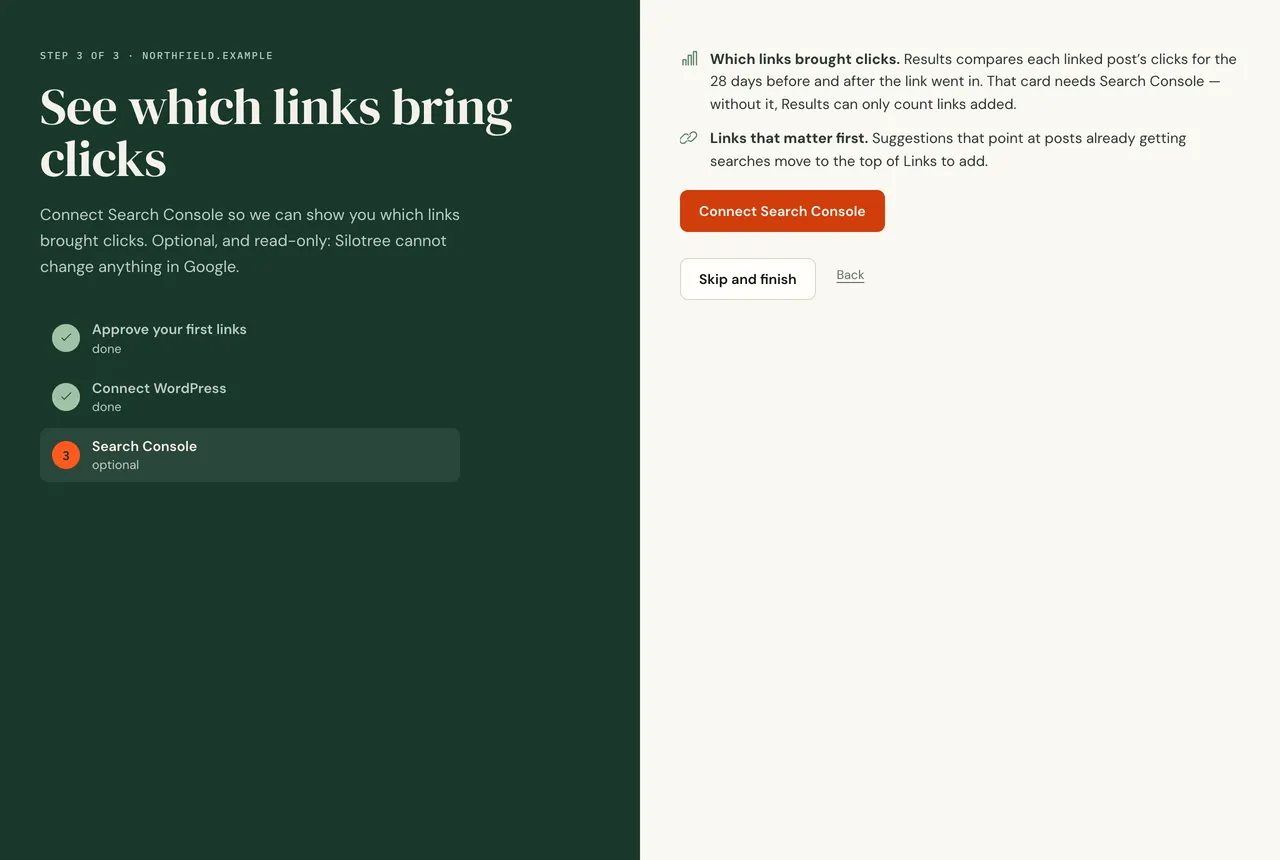
The Search Console step. You can skip it and connect later from Settings. Choose your Google account and allow read-only access
Google asks which account to use and what Silotree may do. Choose the Google account that can see your site in Search Console (new to it? read what Google Search Console is), and allow access. Silotree asks only for read-only access: it cannot change your properties, sitemaps or settings.
Check the property Silotree picked
Silotree picks the property that matches your site — a Domain property first, then the
https://address, then thewwwaddress. In Settings → Connections, Which Search Console property shows the one it chose. To use another, type it and press Save property.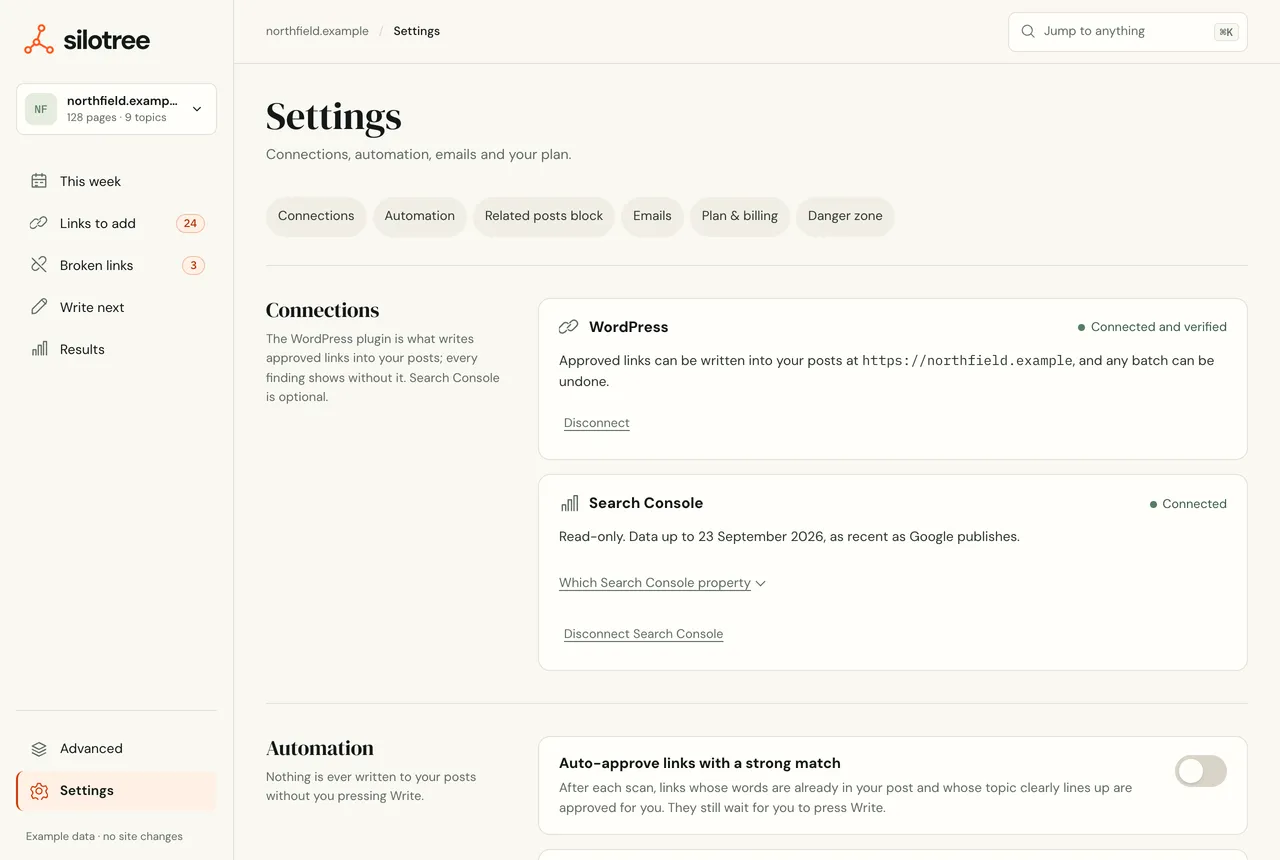
Settings → Connections, with WordPress and Search Console side by side. Wait for the next scan
Connecting queues a fresh scan. Your search data arrives with it, and the first comparison of linked and unlinked posts runs within a week.
What you should see
The step says Search Console is connected. Your data arrives with the next scan. Once it has, links are ranked by the clicks they should earn, posts competing for the same search can be found, and Results shows your traffic.
If it doesn’t work
- “Google was not connected”
You closed Google’s screen or declined. Press Connect Search Console again, or finish without it — you can connect any time in Settings.
- Any other message, or no data after a scan
See Search Console won’t connect for every message Google or Silotree can show, and how to fix it.
Questions
What can Silotree do with my Search Console?
Only read it. It asks for Google’s read-only Search Console permission (webmasters.readonly), which cannot change your properties, settings or sitemaps.
Which property does Silotree use?
It picks the best match for your site: a Domain property first, then the https address, then the www address. You can change it under “Which Search Console property” in Settings → Connections.
How do I disconnect it?
In Settings → Connections press Disconnect Search Console, then confirm. Silotree revokes its access with Google. Figures already collected are kept.