Approve your first links
Your first screen in Silotree is a short list of the links most worth adding, each shown in the sentence it would sit in. Approving saves your choice; nothing touches your site until you connect WordPress.
Steps
Read each link in its sentence
Getting started opens on step 1 of 3, Approve your first links. Each card shows the post the link goes in, the post it points to, and the sentence it would sit in, with the linked words underlined. The words are already in your post; Silotree only wraps them in a link.
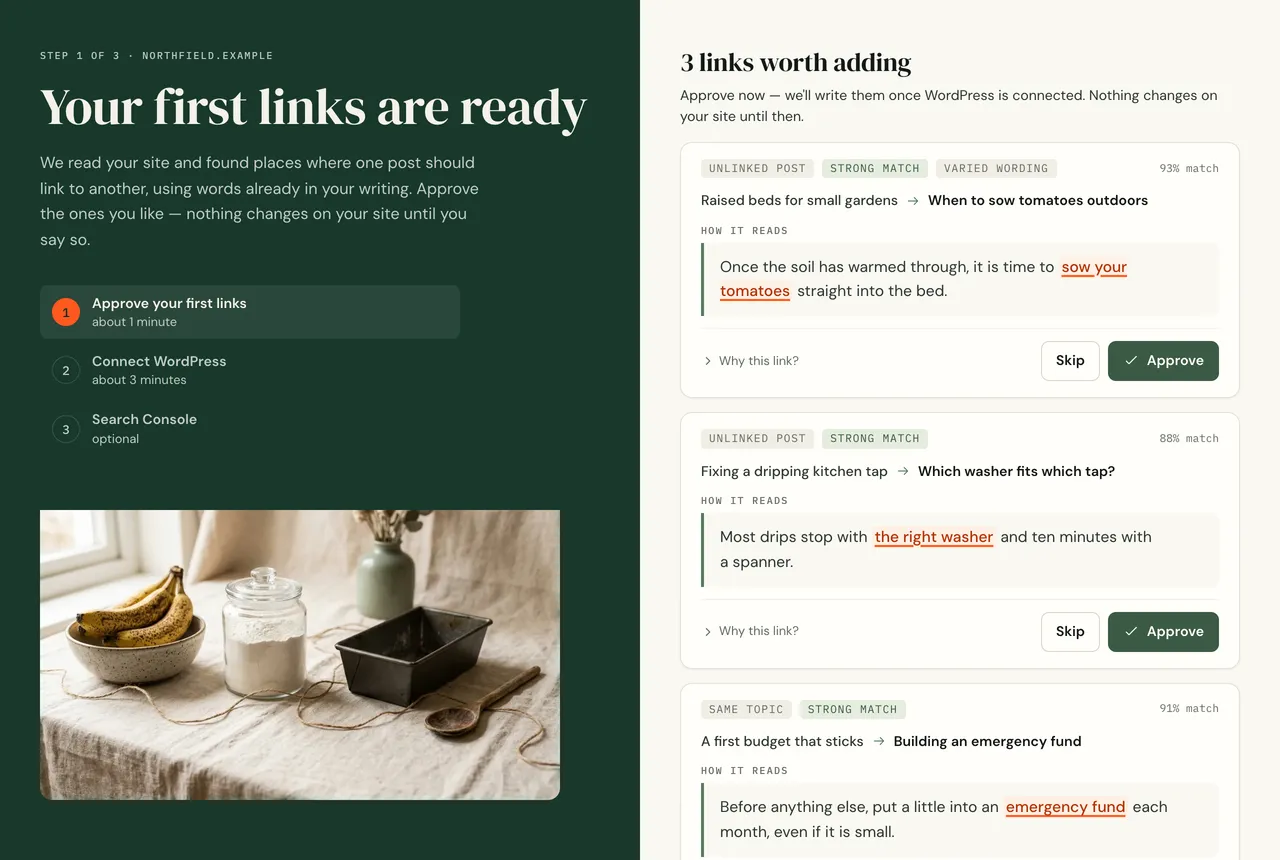
The first onboarding step. Each link is shown in the sentence it would sit in. Press Approve or Skip
Press Approve for a link you want and Skip for one you don’t. Approving only saves your choice: nothing is written to your site yet. If you are unsure, skip it — skipped links can be restored later from Links to add.
Press Continue
Press Continue to go to step 2, Connect WordPress.
What you should see
You are on Connect WordPress. The links you approved are waiting, and are written the moment the plugin connects — see connect WordPress.
If it doesn’t work
- “We could not read your pages” or “We could only read 3 pages”
The scan reached too few pages to suggest links. Usually the crawler was blocked; see the crawl was blocked or stopped short.
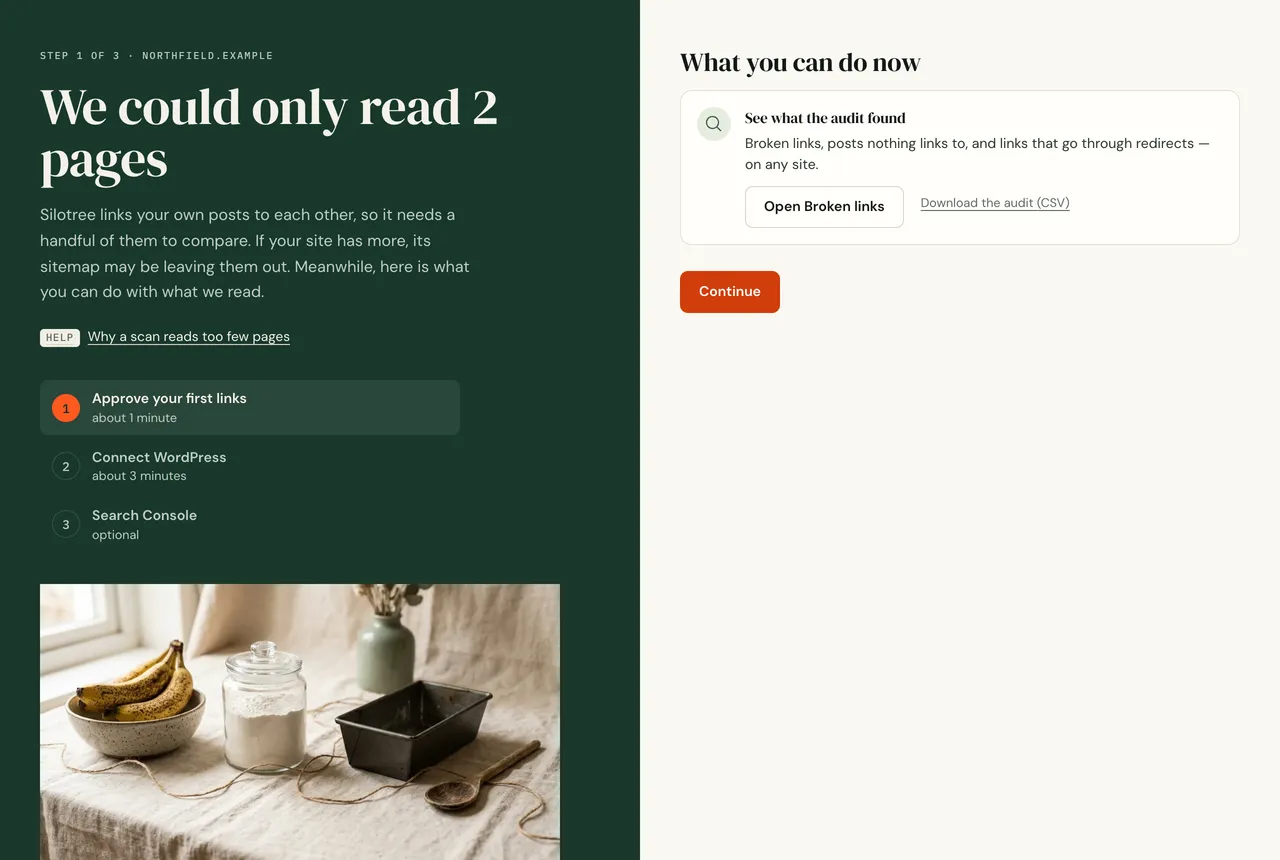
When too few pages could be read, the step explains why instead of showing links. - “This does not look like WordPress”
Silotree can only write links into WordPress. On other platforms you can still use the audit: under What you can do now, download the suggested links as a CSV to add by hand, and choose your platform under Hear when your platform is supported.
- “We have read your site” and no links
Every post already links where it should, or there were too few related posts to pair up. Press Continue: new suggestions arrive as you publish. For ideas on what to link by hand, see the internal linking strategy guide.